How to Make Pixel Sorting Art Online Without Photoshop
Pixel sort a photo in your browser. Follow exact settings, compare brightness thresholds and streak directions, then export your own glitch artwork as PNG.

To pixel sort an image, select a brightness range, choose horizontal or vertical sorting, and adjust the maximum streak length. Pixel Sort rearranges the colors inside connected runs of eligible pixels. Darker and lighter regions outside your chosen range stay in place, so you can break up a sky while keeping much of a building recognizable.
Open the pixel-sorting example. It loads the photograph and baseline settings below in the free browser editor. Change a control to compare the result, then choose Use your own image to keep the treatment and replace the photo. No Photoshop or coding is needed.
Start with separated light and dark regions
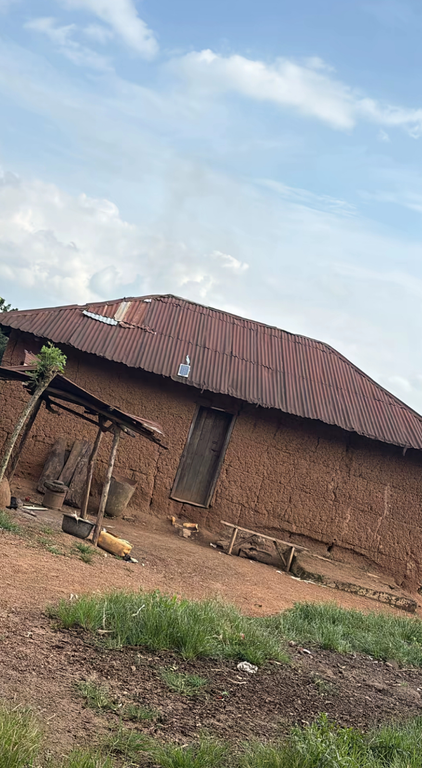
A photograph with a bright sky and a darker subject makes the brightness limits easy to understand. This example uses a 422 × 768 image of a house. The roof and shaded wall are useful visual anchors while the lighter sky becomes streaked.
Download the practice photo
(PNG, 422 × 768). Keep these dimensions and the original framing when reproducing the comparisons.

Pixel sorting works with existing image colors. It does not generate a new scene or identify the subject for you. A brightness selection can affect part of a face as easily as part of a cloud, so inspect the result rather than assuming the main subject is protected.
Load the baseline settings
In the example, expand Pixel Sort in Active FX. Use these settings:
- Direction: Horizontal
- Order: Dark to light
- Sample size: 0.4%
- Dark limit: 0.35
- Light limit: 0.90
- Max streak: 2048
- Mix: 100%
Keep Motion: Pixel Sort off and playback paused at zero. These are still comparisons; the effect does not need playback to sort the image.
The effect finds uninterrupted runs inside that brightness window and orders each run by brightness. An ineligible cell ends a run. On this source, many sky colors qualify while the darker building largely stays in place. Max streak is a cap, not a target: a short eligible run will not grow to 2048 cells.
Change the direction
Change only Direction to Vertical. The colors now travel along columns, producing downward-looking bands in the sky instead of horizontal streaks. Restore Horizontal before the next comparison.

Only Direction changes to Vertical. The brightness window and all other values stay at the baseline.
Direction controls the axis. Order separately controls whether dark or light colors come first within each run. Switching Order does not select a different brightness range.
Narrow the brightness selection
From the baseline, raise only Dark limit to 0.65. Fewer sky tones qualify, leaving more of the upper cloud shapes intact. This is a useful first adjustment when sorting spreads farther than you want.

Raising Dark limit excludes darker cells; lowering Light limit excludes brighter ones. Neither is a selection brush. If your subject and background share similar brightness, the same limits can affect both.
Make shorter streaks
Return Dark limit to 0.35, then change only Max streak to 24. Long eligible runs split into separately sorted sections. On the clouds, that makes repeated short segments instead of continuous bands.

Max streak counts sampled cells. Sample size changes the size of those cells, so the same streak count can occupy a different distance after you change it. This implementation supports up to 2048 cells along the sorting direction; larger images may use larger cells to stay within that limit. See the Pixel Sort control reference for the full behavior.
Troubleshoot the result
Why does nothing change?
Check that Mix is above zero, the effect is enabled, and Light limit is above Dark limit. A narrow window may select very few connected cells. Widen the window gradually and try a photograph with more tonal variation. An already ordered or nearly uniform run can also change very little.
Why does the whole image turn into streaks?
A wide brightness window can include almost an entire row or column. Raise Dark limit or lower Light limit to create more breaks. Shorten Max streak when you want repeated segments, or lower Mix to blend some of the original image back in.
Is pixel sorting the same as pixel stretching?
Sorting rearranges colors in eligible runs. Stretching extends sampled colors across another region. Both can produce long bands, but their controls and results differ. Compare the Pixel Stretch guide when you want an extended strip rather than brightness-ordered runs. For square blocks and limited colors, follow photo-to-pixel-art conversion.
Export your artwork
Use Quick Export with PNG selected, then inspect the downloaded image at its intended viewing size. PNG avoids JPEG compression changing fine streak edges. Keep the practice image at its original dimensions if you want to compare it with these examples.
Editing and export run locally in the browser; your selected image is not uploaded. The website uses analytics as described in the privacy policy.
Try pixel sorting on your own photo. The browser includes export and up to three image, text, or effect layers. Artfkt for Mac adds larger compositions, saved projects, and all collections.
How these examples were made
Artfkt prepared these examples with its production Pixel Sort effect, rendered on WebGPU at 422 × 768 with motion disabled and time fixed at zero. Each comparison changes one control from the stated baseline. The source is Lekkizzy’s CC0 house photograph; it was resized proportionally without cropping. These are processed photographs, not generated illustrations. The article was prepared with AI assistance and checked against the controls and rendered outputs. Other photographs need different thresholds, and rendering can vary by device.
Make something unexpected
Keep exploring in Artfkt.
Bring all collections and multiple image layers together in one Mac studio. Build a look, shape its motion, and save your next starting point.