How to Make a Pixel Stretch Effect Online
Turn a strip of your photo into long color trails. Follow a pixel stretch example, adjust the sampled colors, and export a PNG in your browser.
TL;DR
- Pixel stretching extends a narrow strip of your existing image into a band of color.
- Choose Strip position before Stretch length, then export your still artwork as a PNG from the browser.
- Source brightness selects sampled tones, so it does not automatically protect a subject or background.

To make a pixel stretch effect online, choose a narrow strip of a photo and extend its colors horizontally or vertically. In Artfkt’s free Pixel browser editor, Strip position chooses the sampled colors and Stretch length sets how far they travel. This example turns lemon slices into yellow ribbons against cobalt blue, then exports the still image as a PNG.
Open the pixel-stretch example. It loads the practice photograph and the exact baseline settings together. Keep motion off, change one control at a time, then choose Open photo to apply the treatment to another photo.
Start with colors that separate from the background
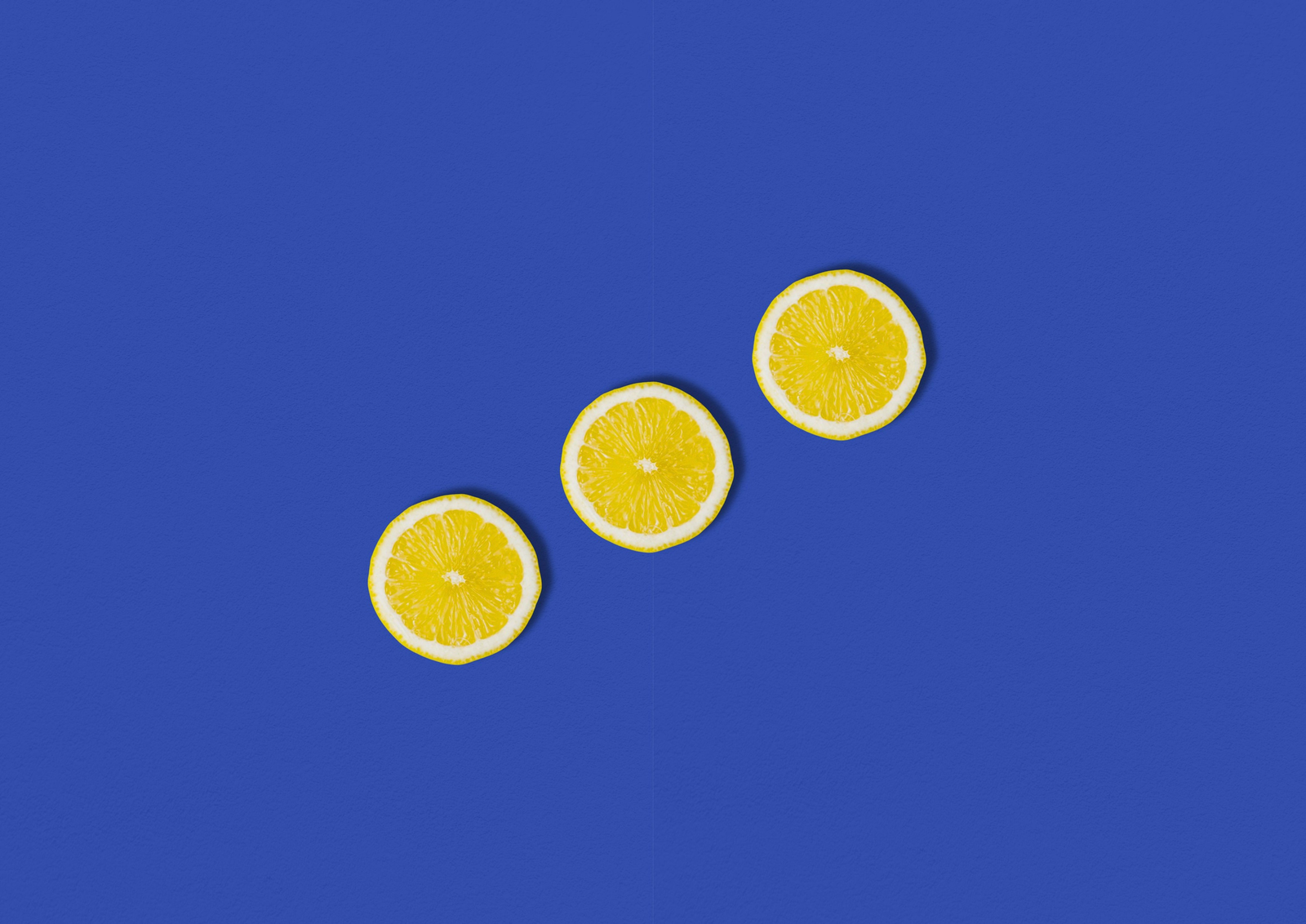
A clear shape against a contrasting background makes the sampled strip easy to see. Our source has three yellow lemon slices on blue. A strip through a lemon picks up yellow flesh, pale rind, shadow, and background; a strip through empty blue mostly produces more blue.
Download the practice photo
(PNG, 1600 × 1132). Keep the original framing and dimensions to reproduce these comparisons.

The untreated source. Follow the middle slice and the upper-right slice through each comparison.
Load the baseline settings
Open Pixel Stretch in Active FX and use these settings:
- Direction: Horizontal
- Strip position: 0.50
- Stretch length: 0.45
- Source strip: keep the example’s 0.008; the number box displays 0.01 after rounding
- Source brightness: 0–1
- Mix: 100%
Leave Motion: Pixel Stretch off and playback paused. The example link preserves the exact Source strip value, including the digits its number box rounds away.
Baseline: Horizontal, Strip position 0.50, Stretch length 0.45, Source strip 0.008, Source brightness 0–1, full Mix.
The strip starts halfway across the image and stretches toward the right. It samples through the middle lemon, producing a yellow ribbon. It also samples blue above that lemon: the band replaces the upper-right slice with that blue. The effect stretches a strip across the image, not just the object you happen to be looking at.
Choose the strip before making it longer
Strip position determines the colors in the trail. Change only Strip position from 0.50 to 0.35. The strip now crosses the lower-left lemon, and its colors extend across a lower part of the picture.

Only Strip position changes to 0.35. Stretch length and all other controls stay at the baseline.
Move the strip a little at a time on your own photo. A small shift can exchange a bright edge for a dark shadow or miss the subject completely. Source strip controls how much of the original image is spread through the band; a wider source includes more neighboring variation. It does not make a selection around the lemon.
Adjust how far the colors travel
Stretch length sets the extent of the affected band along the chosen direction. Restore Strip position to 0.50, then try lowering Stretch length from 0.45 to 0.25. The band ends sooner. Restore 0.45 before continuing.
These values are proportions of the image along the stretch axis. At Strip position 0.50 and Stretch length 0.45, the band ends at 0.95, just short of the image edge. A longer value can run beyond the visible canvas; it does not create extra canvas space.
Switch between horizontal and vertical trails
Direction changes the stretch axis. Starting from the baseline, change only Direction to Vertical. The same Strip position now locates a horizontal strip halfway down the photo, and the band extends downward.

Only Direction changes to Vertical. Strip position stays 0.50 and Stretch length stays 0.45.
The unchanged position number samples a different line when the axis changes. On this source, that line still crosses a lemon. On another photograph, you may need to reposition it to find useful colors. Switch back to Horizontal for the next comparison.
Keep selected bright tones in the trail
Source brightness limits which sampled colors replace the image inside the band. From the baseline, raise only its lower limit to 0.55, leaving the upper limit at 1.

Source brightness 0.55–1. Every other setting matches the horizontal baseline.
The bright lemon tones still stretch, while many darker sampled tones no longer replace the input. Gaps open between the yellow lines, revealing more of the original photo, including the upper-right slice. This is a tonal filter on the sampled strip, not subject detection. Similar tones in a person, object, or background can qualify together.
Troubleshoot a flat or unexpected result
Why do I only get a solid-colored band?
The source strip may cross a mostly uniform area. Move Strip position through an edge with different colors or widen Source strip slightly. More length cannot add colors that the strip never sampled.
Why does part of my subject disappear?
Sampled colors replace the input throughout the eligible band, including other objects. Reposition or shorten the band, narrow Source brightness, or lower Mix to blend the result with the original. There is no automatic subject protection in Pixel Stretch.
Why does little or nothing change?
Check that the effect is enabled, Mix and Stretch length are above zero, and Source brightness includes tones from the sampled strip. A strip near the far edge has little visible room to stretch. Start with the full brightness range and a contrasting image before narrowing it.
Is pixel stretching the same as pixel sorting?
Stretching extends colors from a narrow strip. Sorting rearranges colors within eligible runs. Follow the pixel sorting tutorial for brightness-ordered streaks, or convert a photo into pixel art for square cells and limited palettes. The Pixel Stretch control reference remains the place to check its controls.
Export a PNG and try your own image
Open Export in the editor toolbar and choose PNG. Inspect the downloaded image at its intended viewing size. Export is included in the browser; this still treatment needs no animation or video recording.
Open the pixel-stretch example, then choose Open photo. The effect settings stay in place, but a different photograph will usually need a different Strip position and brightness range.
Editing and export run locally in your browser; your selected image is not uploaded. The website uses analytics as described in the privacy policy. The Artfkt desktop app adds saved projects and the full collection library.
How these examples were made
Artfkt rendered the examples with its production Pixel Stretch effect on WebGPU at 1600 × 1132, with motion disabled and time fixed at zero. Each pictured comparison changes one setting from the stated baseline. The source is Sophie Popplewell’s lemon photograph, used under the Unsplash License and proportionally resized without cropping. These are processed photographs; results can vary with the source image and rendering device.
Make something unexpected
No subscriptions. More room to create.
Bring all collections and multiple image layers together in one desktop studio. Build a look, shape its motion, and save your next starting point.
Pay US$29 once at launch (regularly US$39). Includes all current collections and Artfkt 1.x updates.
Future major upgrades are not included.